
"Just add Google Calendar sync" is one of those requests that sounds like a weekend task and turns into a multi-sprint project. The first version — log in, pull events, show them in a list — takes an afternoon. What takes longer is everything that makes it reliable in production: keeping data fresh without hammering Google's rate limits, handling tokens that expire or get revoked, and making sure a rescheduled meeting on one side actually shows up on the other. Whether you're wiring this into a native mobile app or a browser-based SaaS product, the underlying integration problem is the same. This guide walks through the integration step by step, the mistakes that quietly break sync in production, and how to verify it's actually working before you ship it.
Step 1: Set Up the Google Cloud Project and OAuth Consent Screen
Before writing any sync logic, create a project in Google Cloud Console, enable the Google Calendar API, and configure the OAuth consent screen. Decide early whether you need calendar.readonly or the full calendar scope — requesting write access you don't need slows down verification review and makes users more hesitant to grant access. If your app will be used by more than 100 users, budget time for Google's OAuth app verification process, since unverified apps show a scary warning screen that tanks conversion on the connect step.
Step 2: Implement the OAuth 2.0 Authorization Flow
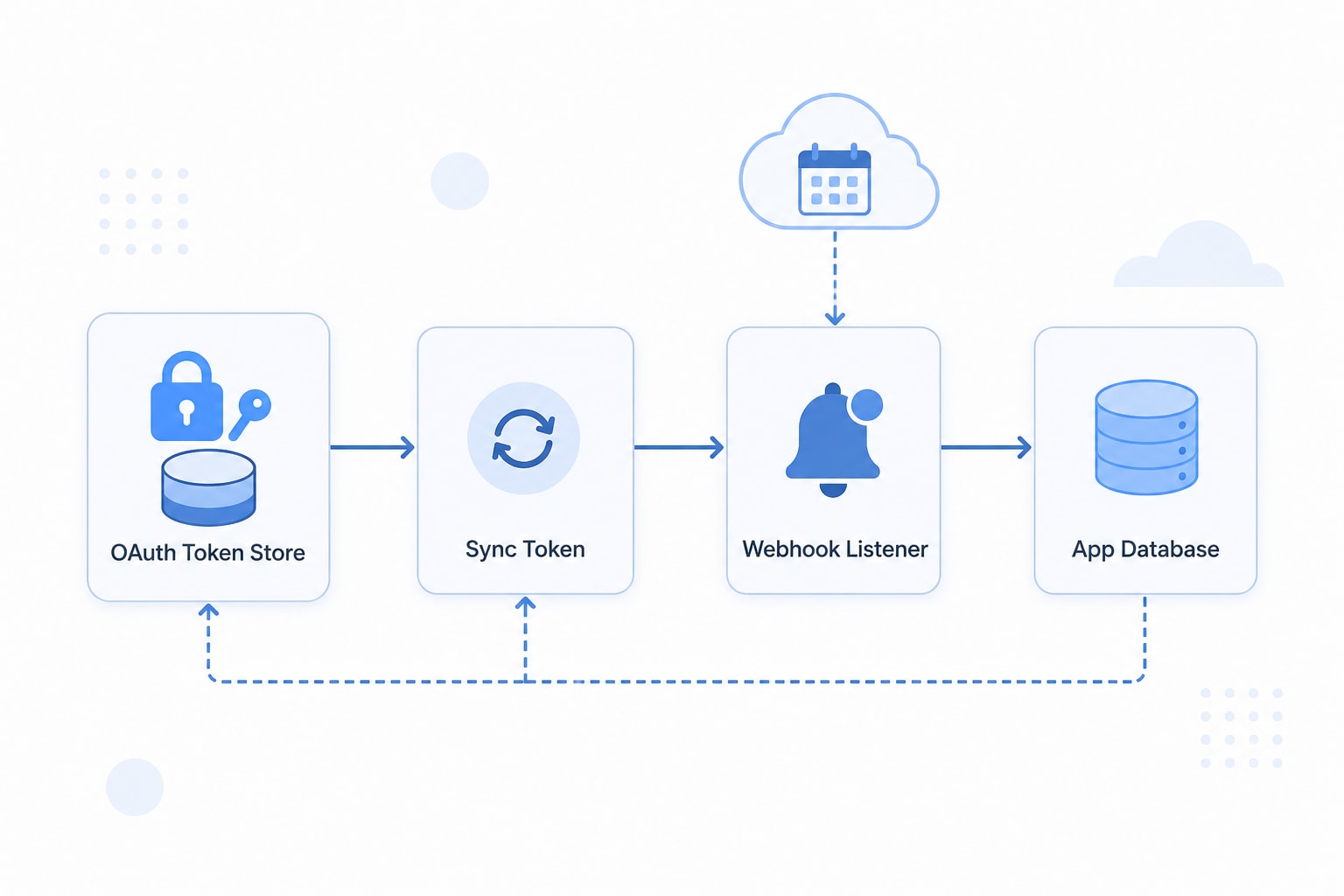
Use the standard OAuth 2.0 authorization code flow: redirect the user to Google's consent screen, receive an authorization code on your callback URL, and exchange it server-side for an access token and refresh token. That exchange belongs firmly in your backend API layer, never in client-side code, since it involves a client secret. Two details matter more than they look: request access_type=offline so you actually receive a refresh token, and pass prompt=consent on re-authorization, since Google only issues a refresh token on the first consent grant for a given user and scope combination. Store the refresh token encrypted at rest — it's a long-lived credential, not a session artifact.
Step 3: Choose a Sync Strategy Before You Write Sync Code
Decide this upfront, because it changes your data model: is sync one-way (Google Calendar is the source of truth, your app just reads) or two-way (edits in either system propagate to the other)? One-way sync is simpler and covers most "see my meetings in the app" use cases. Two-way sync requires a conflict resolution strategy for the case where the same event changes in both places between sync runs — decide now whether Google wins, your app wins, or the most recent edit wins, rather than discovering the gap when a support ticket comes in.
Step 4: Run the Initial Full Sync
Call events.list for the user's calendar and paginate through every page using nextPageToken. The final page — the one without a nextPageToken — includes a nextSyncToken. Store that token durably, keyed to the specific calendar and the exact filter parameters you used (time range, singleEvents, etc.), since those filters must stay identical on every subsequent incremental call.
Step 5: Switch to Incremental Sync With Sync Tokens
Once you have a nextSyncToken, every later sync should pass it as the syncToken parameter instead of re-fetching the whole calendar. The response then contains only events created, updated, or deleted since the last successful sync — deleted events are always included so you can remove them locally. This is the difference between fetching three changed events and re-downloading three thousand on every check, and it's what keeps you inside Google's rate limits as your user base grows.
- Treat the sync token as an opaque string — never parse it or assume its structure.
- Read every paginated page before trusting a token; a nextSyncToken only appears on the final page.
- Never combine syncToken with filters like q, timeMin, or timeMax — Google rejects the combination with a 400 error.
- Handle the 410 Gone response: it means the token expired, and the only fix is discarding it and running a fresh full sync.
Step 6: Add Push Notifications for Near Real-Time Updates
Polling on a schedule works, but it means a rescheduled meeting might not show up in your app for minutes. To close that gap, register a watch channel on the calendar resource, pointing at a verified HTTPS webhook endpoint — this only works reliably if your hosting and deployment setup guarantees that endpoint stays up and reachable around the clock. When something changes, Google sends a bare notification — no event details — which is your cue to run an incremental sync using the stored sync token to fetch what actually changed. Google's own documentation is explicit that push notifications aren't 100% reliable, so treat webhooks as the fast path and keep a scheduled incremental poll (every 30–60 minutes) as the safety net that catches anything a dropped notification missed.
Don't Forget Channel Renewal
Watch channels expire — commonly within about a week — and Google does not renew them automatically. Build a scheduled job that checks each channel's expiration and calls watch again with a new channel ID before the old one lapses. Miss this and your integration doesn't error out; it just goes quiet, which is a worse failure mode because nothing alerts you.
A calendar sync that fails loudly is a bug. A calendar sync that fails silently is a trust problem.
Common wisdom among engineers who've shipped calendar integrations
Step 7: Handle Time Zones and Recurring Events Correctly
Google Calendar stores a recurring meeting as a single parent event with a recurrence rule (RRULE, per RFC 5545), not as individual rows per occurrence. If your app needs to expand recurring events into concrete instances — for a list view or reminders — request singleEvents=true consistently, and keep that setting identical between your full sync and every incremental sync that follows. Separately, always store event times with their original time zone rather than converting to UTC and discarding the source zone; a meeting created in IST needs to render correctly for a viewer in a different zone, and you can't reconstruct that correctly after the fact if the zone information is gone.
Step 8: Refresh Tokens and Handle Revocation Gracefully
Access tokens expire roughly every hour; your backend should refresh them transparently using the stored refresh token, never surfacing that as a user-facing error. Refresh tokens themselves can stop working — the user revokes access from their Google account, changes their password, or the app sits in Google's testing mode past its access window. When a refresh call fails, don't retry silently in a loop; mark the connection as broken, notify the user, and prompt them to reconnect. A calendar integration that fails and just stops updating, with no visible signal, erodes trust faster than one that clearly asks the user to reconnect.
Common Mistakes We See in Calendar Integrations
- Re-fetching the entire calendar on every sync instead of using sync tokens — this burns API quota fast and slows down as a user's calendar history grows.
- Forgetting access_type=offline during the OAuth request, which means no refresh token is ever issued, and the integration silently stops working the moment the access token expires.
- Never renewing webhook channels — the integration works perfectly in testing and then goes quiet in production a week later with no error anywhere.
- Combining syncToken with query filters like timeMin or q, which Google rejects outright and which usually surfaces as a confusing 400 error late in development.
- Treating a 410 Gone as a generic failure instead of the specific signal it is — that the sync token expired and a full re-sync is required — leading to stuck, permanently broken sync states.
- Assuming push notifications are guaranteed delivery and skipping the scheduled polling fallback, which means dropped notifications quietly leave the app's data stale.
- Discarding time zone data during storage, which causes recurring meetings and multi-region attendees to render at the wrong local time.
Verification Checklist Before You Ship
- Create, edit, and delete an event directly in Google Calendar, and confirm each change reflects in your app within your expected sync window.
- Revoke app access from the user's Google Account settings and confirm your app detects the broken connection and prompts reconnection, rather than failing silently.
- Let a webhook channel run past its expiration in a staging environment and verify your renewal job catches it before notifications actually stop.
- Force a sync token to go stale (or simulate a 410 response) and confirm your integration falls back to a full re-sync instead of erroring out permanently.
- Test a recurring event with an exception — one occurrence moved or cancelled — and confirm the exception is reflected without duplicating or dropping the rest of the series.
- Load test the initial full sync against a calendar with several thousand events to confirm pagination and rate-limit handling hold up, not just the two-event calendar used in development.
- Check that time zone rendering is correct for at least two different zones, including one on the opposite side of a daylight-saving-time change.
How We Approach This at Fall Rise
Calendar sync shows up more often than founders expect — booking flows, driver and delivery scheduling, and internal tooling all end up needing some version of it. On Bhaada, our logistics platform, reliable scheduling data is exactly this kind of problem: it has to stay accurate even when a booking changes on short notice. We've solved a related version of it on RentEra, our rental platform, where property viewings and multi-role availability need to stay consistent across owners, agents, and tenants. Both are examples of the kind of custom software work where an off-the-shelf calendar widget isn't enough. The pattern is the same whether it's a logistics booking or a meeting: incremental sync to stay efficient, webhooks for speed with polling as the safety net, and a token lifecycle that fails loudly instead of quietly. If you're scoping a calendar or scheduling integration and want a second pair of eyes on the architecture before you build it, let's talk.
Google Calendar sync is a well-documented API wrapped around a genuinely tricky set of production concerns: token lifecycles, expiring webhooks, rate limits, and time zone edge cases that only surface with real user data. Get the sync token and webhook renewal patterns right from the start, and the integration will hold up quietly in the background — which is exactly what a calendar sync should do. Take a look at more of our recent work if you want to see how these patterns play out in shipped products.