
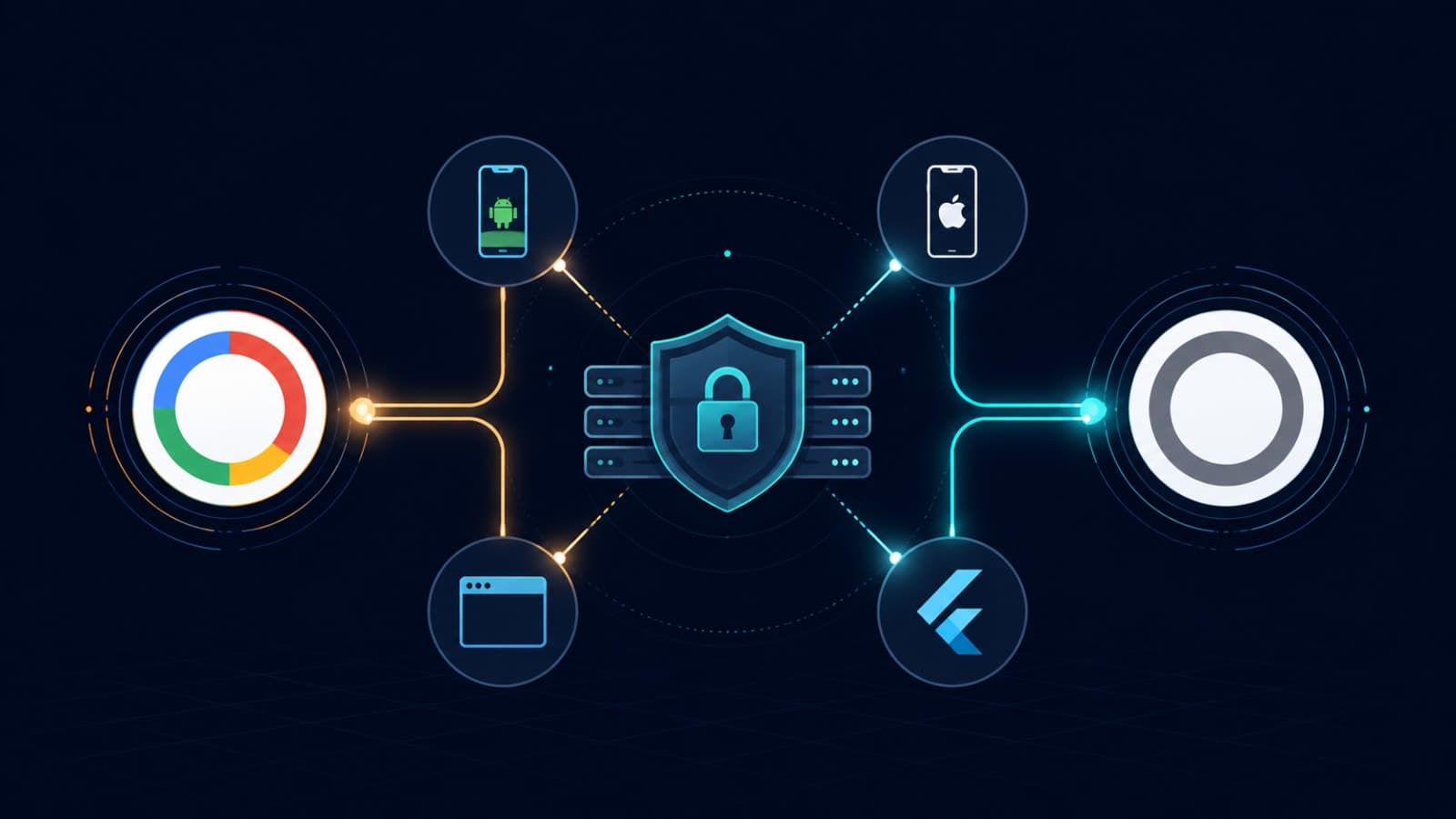
Firebase Auth is the default answer most tutorials give for "how do I add Google or Apple sign-in," but plenty of teams don't want it — you already have a backend, you don't want an extra vendor dependency, or you need full control over sessions and token issuance. The good news: both Google and Apple expose their sign-in flows as plain OAuth 2.0 / OpenID Connect, no Firebase SDK required. This guide walks through the actual flow on Android, iOS, Web, and Flutter, how to verify tokens on your own backend, and the mistakes that trip up almost every first implementation.
The Shape of a Firebase-Free Sign-In Flow
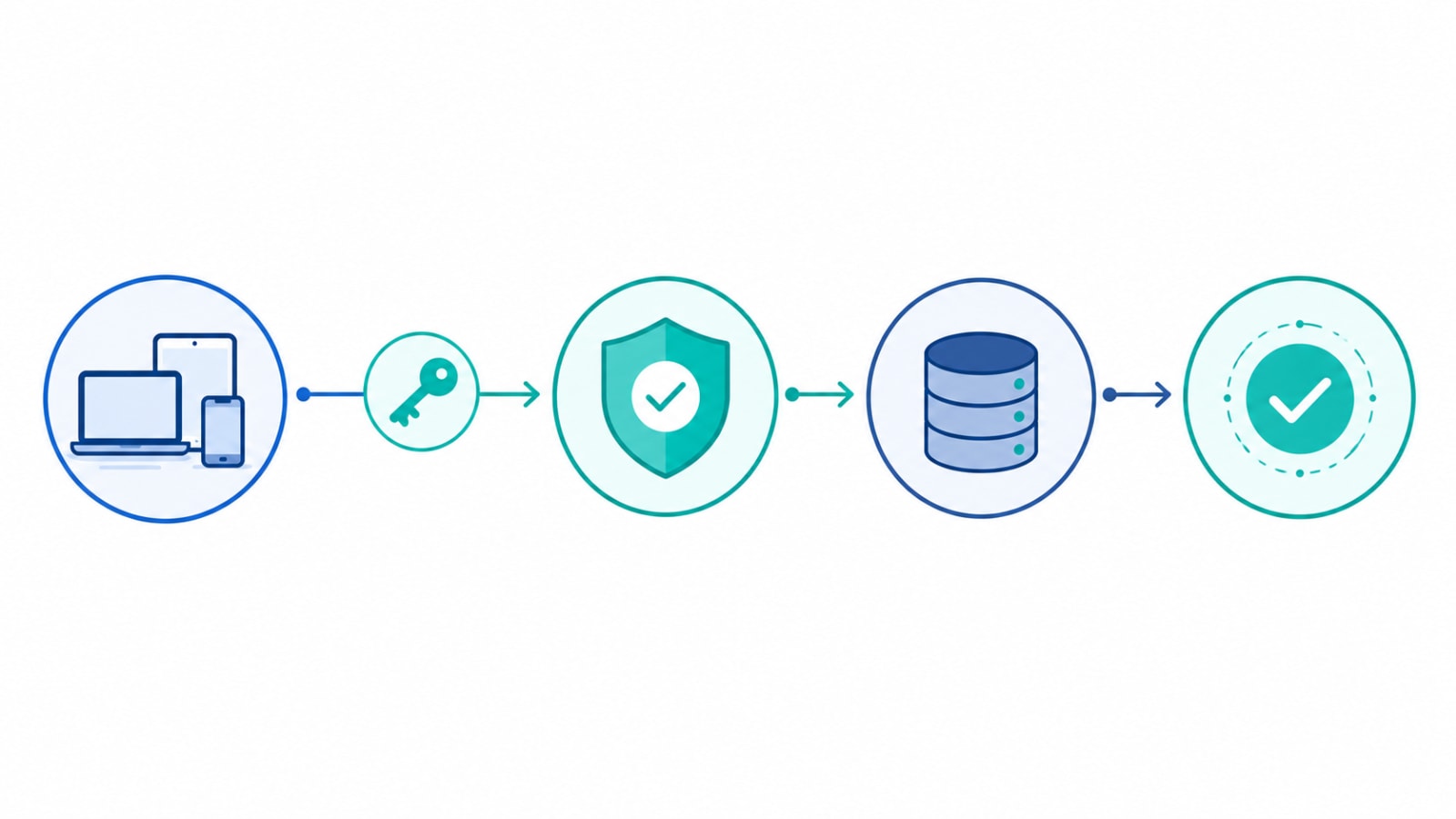
Regardless of platform, the pattern is identical: the client authenticates with Google or Apple directly, receives a signed token, and hands that token to your backend. Your backend re-verifies the token against Google's or Apple's public keys and only then issues your own session — a JWT, a cookie, whatever your app already uses. Firebase would normally sit in the middle doing that verification for you; without it, you own that step.
- Client triggers the native or web sign-in flow for Google or Apple.
- Provider returns a signed ID token (a JWT) to the client — never a password, never raw credentials.
- Client sends that ID token to your backend over HTTPS.
- Backend verifies the token's signature, issuer, audience, and expiry against the provider's public keys.
- Backend creates or looks up the user record and issues its own session token back to the client.
That verification step is the part Firebase normally hides from you — and it's also where most Firebase-free implementations quietly get it wrong. We'll cover it for both providers below. If you're building this into a new product from scratch, this is also exactly the kind of decision worth nailing down early — see our breakdown of choosing a startup tech stack for how the backend side typically fits together.
Google Sign-In: Cloud Console Setup (Do This Once)
Every platform shares the same Google Cloud project, but each needs its own OAuth client credential. Get this wrong and you'll spend hours debugging a token that's simply signed for the wrong audience.
- OAuth consent screen — configure this first; it's required before any client ID can be created.
- Web client ID — required for your backend's token verification and for Flutter/Android's
serverClientId. This is the audience your backend checks against. - Android client ID — tied to your app's package name and SHA-1 signing certificate fingerprint. You need one for your debug keystore and one for your release keystore — mixing these up is the single most common cause of a broken Android sign-in.
- iOS client ID — tied to your app's bundle ID, used by the iOS SDK to initiate the flow.
Android: Credential Manager (Not the Legacy Google Sign-In SDK)
Google has deprecated the legacy com.google.android.gms:play-services-auth Google Sign-In SDK in favor of Credential Manager, Android's unified Jetpack API for passkeys, passwords, and federated sign-in. New Android integrations should build on Credential Manager directly rather than the old SDK, which is on its way out.
- Add the
androidx.credentialsandgoogleidCredential Manager dependencies to your app module. - Build a
GetSignInWithGoogleOption(orGetGoogleIdOption) request using your Web client ID — not the Android client ID — as the server client ID. - Call
CredentialManager.getCredential(), which shows the system's native account-picker bottom sheet. - Parse the returned credential as a
GoogleIdTokenCredentialand pull out the ID token. - Send that ID token to your backend over HTTPS for verification — never trust it client-side.
iOS: Google Sign-In SDK
Credential Manager is Android-only. On iOS, Google's own Google Sign-In SDK for iOS handles the native flow, presenting a system sheet backed by your iOS client ID. After a successful sign-in, the SDK gives you a GIDGoogleUser object with an ID token attached — send that token to the same backend endpoint used by every other platform. Keep the iOS client ID and the Web client ID separate in your Cloud Console configuration; they serve different audiences and shouldn't be conflated.
Web: Google Identity Services
For a plain web app, Google Identity Services (GIS) — Google's current JavaScript library — renders either a "Sign in with Google" button or a One Tap prompt and hands your callback a signed credential object.
- Load the GIS client library script and initialize it with your Web client ID.
- Render the button (or trigger One Tap) and register a callback function.
- The callback receives a
credentialfield containing the ID token as a JWT string. - POST that token to your backend verification endpoint — the same one every other platform uses.
- Store the resulting session token from your backend, not anything from the Google response directly.
Flutter: google_sign_in (v7+ API)
The google_sign_in package went through a major rewrite starting with version 7.0. If you're following an older tutorial, expect it to be wrong — GoogleSignIn(), .signIn(), and .currentUser were all removed. The current API is singleton-based and explicit about initialization:
- Call and
await GoogleSignIn.instance.initialize(clientId: ..., serverClientId: ...)exactly once at app startup, before touching any other method. - Pass your platform client ID as
clientIdand your Web client ID asserverClientId— the server ID is what makes the resulting ID token valid for your backend's audience check. - Call
GoogleSignIn.instance.authenticate()to trigger the sign-in flow (this replaced the oldsignIn()method). - Listen to
signIn.authenticationEventsor read the returnedGoogleSignInAccountto get the user's ID token. - On Flutter Web specifically, you still need to render Google's own button via the platform's web plugin rather than triggering the flow programmatically — Google's terms require the branded button, not a custom one.
- Send the ID token to your backend, same as every other platform.
Backend Verification for Google Tokens
Never trust an ID token just because a client sent it. Verify the JWT signature against Google's published public keys (most server-side Google auth libraries — google-auth-library for Node, google-api-python-client for Python — handle key rotation for you), then check three claims explicitly: the issuer must be accounts.google.com or https://accounts.google.com, the audience must match your Web client ID exactly, and the token must not be expired. Only after all three pass should you trust the sub claim as the user's stable Google account identifier.
Sign in with Apple: Developer Account Setup
Apple's setup lives in the Apple Developer portal rather than a cloud console, and it has one extra piece Google doesn't: a private key your backend uses to verify tokens and, if needed, generate its own client secret for refresh flows.
- App ID with the "Sign in with Apple" capability enabled — required for the native iOS flow.
- Services ID — a separate identifier used specifically for web-based and Android sign-in flows, configured with your domain and redirect URI.
- Sign in with Apple key — a
.p8private key generated once in the portal, used by your backend to verify tokens and sign client secrets for server-to-server calls. - Domain and redirect URI verification for any Service ID used in a web-based flow — Apple checks these against a file hosted on your domain.
iOS: Native AuthenticationServices Flow
On iOS, Apple's own AuthenticationServices framework handles Sign in with Apple natively — no third-party SDK required for the iOS side.
- Generate a random nonce and its SHA-256 hash before starting the request — this prevents replay attacks and is required for the token verification step later.
- Create an
ASAuthorizationAppleIDProviderrequest, setrequestedScopesto[.fullName, .email], and attach the hashed nonce. - Run the request through an
ASAuthorizationControllerand implement the delegate callbacks. - On success, pull
identityToken(a JWT) andauthorizationCodeoff the returnedASAuthorizationAppleIDCredential. - Send the identity token — and the original, unhashed nonce — to your backend for verification. Do not verify the token on-device.
One quirk worth planning for: Apple only sends the user's name and email on the very first authorization. On every subsequent sign-in you'll only get the stable user identifier (also present as the sub claim in the token). If you don't persist the name and email from that first response, you can't recover it later — Apple won't send it again.
Android & Web: Apple's Web-Based Flow
Apple doesn't ship a native Android SDK. On Android, and on any web app, Sign in with Apple runs through the same Sign in with Apple JS web flow, opened in a browser tab or custom tab rather than a native sheet.
- Load Apple's
AppleID.authJavaScript library on the page or WebView you're using for the flow. - Initialize it with your Services ID (not your App ID), the configured redirect URI, and the requested scopes.
- Trigger
AppleID.auth.signIn()— this opens Apple's hosted authentication page. - On success, Apple redirects to your configured redirect URI with an authorization code and, depending on configuration, an identity token.
- On Android specifically, open this flow in a Custom Tab rather than an embedded WebView — Apple's own guidance and most platforms' anti-fraud checks penalize sign-in flows run inside opaque WebViews.
Flutter: sign_in_with_apple Package
The sign_in_with_apple package wraps the native iOS flow directly and falls back to Apple's web flow on Android automatically, provided you configure it correctly.
- On iOS, call
SignInWithApple.getAppleIDCredential()withAppleIDAuthorizationScopes.emailand.fullName— this routes straight to the nativeAuthenticationServicesflow. - On Android, pass a
WebAuthenticationOptionsobject containing your Services ID as the client ID and your configured redirect URI — without this, the Android call fails silently or throws immediately. - Generate and pass a nonce the same way you would on native iOS, so your backend verification step is identical across platforms.
- Read
identityTokenoff the returned credential and send it to your backend — the same verification endpoint you use for the native iOS flow.
Backend Verification for Apple Tokens
Apple's identity token is a JWT signed with a key you don't control directly, so verification means fetching Apple's public keys (JWKS) at https://appleid.apple.com/auth/keys, matching the token's kid header to the right key, and verifying the signature with RS256. Then check the issuer is exactly https://appleid.apple.com, the audience matches your App ID (native flow) or Services ID (web/Android flow), the token hasn't expired, and — critically — that the nonce embedded in the token matches the one your client generated for that specific request. Use the sub claim, never the email, as your permanent user identifier: Apple's private relay email addresses can be regenerated or revoked by the user at any time.
Common Mistakes That Break Production Sign-In
- Sending the Android client ID as the audience instead of the Web client ID — this is the #1 cause of a Google ID token that verifies locally but fails on the backend.
- Mixing up debug and release SHA-1 fingerprints — sign-in works fine on your dev machine and fails for every user on the Play Store build, because the release keystore's fingerprint was never added in Cloud Console.
- Skipping nonce verification for Apple — without it, a captured identity token can be replayed against your backend indefinitely until it expires.
- Not persisting the name/email Apple sends on first sign-in — there's no way to request it again on later logins.
- Running Apple's web flow inside a plain WebView on Android instead of a Custom Tab — this gets flagged by both Apple's and Google's anti-automation heuristics and can silently fail.
- Trusting the ID token without verifying signature, issuer, audience, and expiry — a token that merely "looks like" a valid JWT is not a verified one.
- Forgetting Apple's App Store requirement — Guideline 4.8 requires offering Sign in with Apple if your iOS app offers other third-party account creation options; skipping it risks App Store rejection.
Quick Answers to Common Errors
"My Android idToken is null with google_sign_in." Almost always means serverClientId wasn't passed to initialize(), or it's pointing at the Android client ID instead of the Web client ID. The ID token is only populated when a valid server client ID is present.
"Can I use Sign in with Apple on Android at all?" Yes — there's no native Android SDK from Apple, but the web-based flow through a Services ID and Custom Tab works reliably and is what packages like sign_in_with_apple use under the hood.
"Do I need Sign in with Apple if I already have Google Sign-In?" On iOS, yes — if your app offers any third-party sign-in option for account creation, Apple requires Sign in with Apple to be offered as an equivalent option under App Store Review Guideline 4.8.
"How do I verify an Apple identity token without a library?" Fetch Apple's JWKS from appleid.apple.com/auth/keys, match the kid, verify the RS256 signature, then manually check iss, aud, exp, and nonce — most JWT libraries in every major backend language support this directly against a JWKS URL.
How We Handle This at Fall Rise
When we built authentication for products like RentEra and Bhaada (you can see both in our project portfolio), Firebase-free social sign-in was a deliberate call — both platforms already had their own backend services, and adding Firebase Auth on top would have meant maintaining two sources of truth for user identity. We handle this as standard practice across mobile app development and backend API development engagements — token verification lives in the same backend that already owns sessions, permissions, and the rest of the user model, rather than being split across a third-party auth vendor. On iOS app projects, that includes Sign in with Apple wired up to pass App Store review the first time. For teams building a new product from scratch, this same pattern extends cleanly into custom software development work where authentication needs to plug into an existing identity system rather than a fresh Firebase project.
Firebase Auth isn't wrong for every project — it's a genuinely fast path when you don't have a backend yet. But when you do, going straight to Google's and Apple's own SDKs keeps identity verification in the same place as the rest of your business logic, with one less vendor between your users and your database. If you're wiring this up and want a second pair of eyes on your token verification logic before it ships, let's talk.