
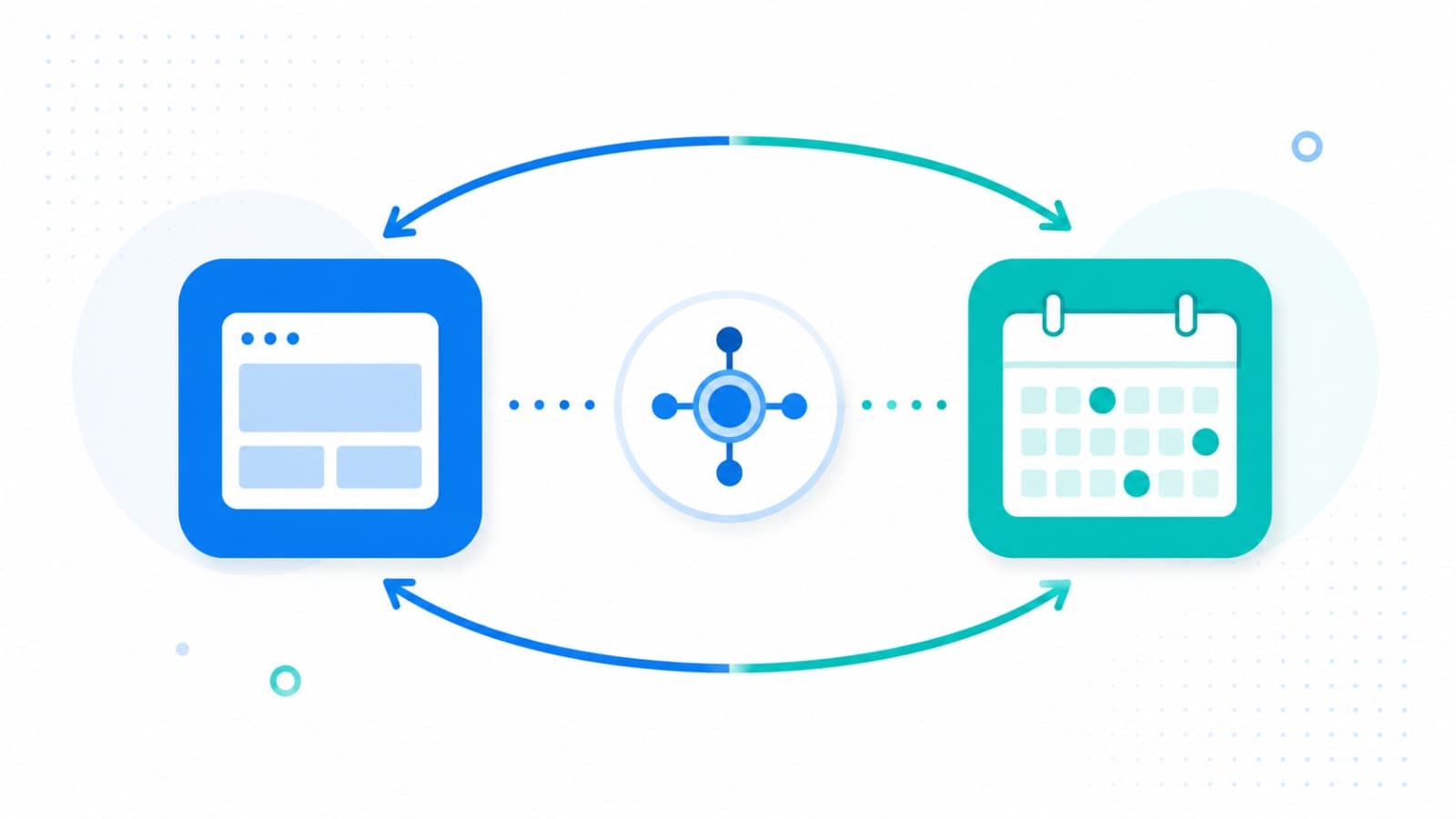
"Just sync it with Outlook" is one of those feature requests that sounds simple in a planning meeting and turns into weeks of edge cases once you're actually inside Microsoft Graph. Booking apps, scheduling tools, CRMs — almost every product that touches meetings eventually needs to read from, or write to, a user's Outlook calendar. This guide covers the real flow: registering an app in Azure, requesting the right permissions, running the OAuth exchange, and the specific mechanics that separate a one-way read integration from a genuine two-way sync.
One-Way vs Two-Way Sync: What You're Actually Building
These two get lumped together constantly, but they're different engineering problems with very different failure modes. Get clear on which one you need before writing any code — it changes your permission scopes, your data model, and your conflict-handling logic.
- One-way sync (read-only) — your app pulls events from Outlook to display availability or context. Simpler: no write conflicts, no risk of corrupting the user's real calendar, just periodic reads.
- One-way sync (write-only) — your app pushes events it creates into Outlook (e.g. a booking confirms and lands on the user's calendar), but never reads changes back. Still relatively simple, but a user editing or deleting the event in Outlook won't be reflected in your app.
- Two-way sync — changes flow in both directions: a reschedule in your app updates Outlook, and a reschedule in Outlook updates your app. This is where delta queries, change notifications, and conflict resolution all become mandatory, not optional.
Azure Setup: Registering Your App in Microsoft Entra ID
Every Graph API call needs a registered application — Microsoft won't issue a token to anything it doesn't recognize. This is a one-time setup per environment (you'll typically want separate registrations for staging and production).
- In the Azure Portal, go to Microsoft Entra ID → App registrations → New registration and give it a name.
- Choose the supported account type — "Accounts in any organizational directory and personal Microsoft accounts" if you need to support both Microsoft 365 work accounts and personal Outlook.com users with a single registration.
- Add a Redirect URI under Authentication — for a server-rendered or backend-driven flow, select the Web platform and enter something like
https://yourapp.com/auth/microsoft/callback. This must match exactly what your backend sends in the authorization request, including trailing slashes. - Copy the Application (client) ID and Directory (tenant) ID from the Overview page — you'll need both for every token request.
- Under Certificates & secrets, generate a client secret (or, for production, a certificate — Microsoft's preferred, more secure option since certificates use asymmetric keys and don't expire by accident). Store it in a secrets manager immediately; it's only shown once.
- Set a Publisher Domain under Branding & Properties — without a verified domain, users see an "unverified app" warning on the consent screen, which quietly kills conversion on the very first step.
Requesting the Right Scopes
Microsoft Graph permissions come in two flavors, and mixing them up is a common source of confusing 403 errors: delegated permissions act on behalf of a signed-in user (what almost every calendar-sync feature needs), while application permissions let your backend act as itself, without a user in the loop — useful for background jobs, not for "connect my Outlook calendar" style features.
Calendars.Read— read-only access to the signed-in user's calendar. Enough for one-way, read-only sync.Calendars.ReadWrite— read and create/update/delete events. Required for any write-back or two-way flow.Calendars.ReadWrite.Shared— needed if your app must access calendars the user has been granted delegate or shared access to, not just their own.offline_access— requests a refresh token alongside the access token. Skip this and your integration silently stops working the moment the short-lived access token expires, because there's nothing to refresh it with.
The Auth Flow: OAuth 2.0 Authorization Code Grant
This is the standard three-legged OAuth flow, and it's the same shape whether you're calling Graph directly or using Microsoft's MSAL libraries (which handle token caching and refresh for you and are worth using over hand-rolled HTTP calls in almost every case).
- Redirect the user to
https://login.microsoftonline.com/{tenant}/oauth2/v2.0/authorizewith yourclient_id,redirect_uri,response_type=code, the requestedscopelist, and a randomstatevalue to protect against CSRF. - The user signs in with their Microsoft account and consents to the requested calendar permissions.
- Microsoft redirects back to your exact registered redirect URI with an authorization
codeand thestatevalue you sent — verify the state matches before doing anything else. - Your backend exchanges that code for tokens at
https://login.microsoftonline.com/{tenant}/oauth2/v2.0/token, sendinggrant_type=authorization_code, the code, yourclient_id,client_secret, and the sameredirect_uri. - Store the returned access token (short-lived, typically ~1 hour) and refresh token (long-lived, only present if you requested
offline_access) against that user's account. - Use the access token as a Bearer token on every subsequent Graph API call, and silently refresh it with the refresh token before it expires.
One-Way Sync: Reading Events
For a read-only integration, GET /me/calendarView?startDateTime=...&endDateTime=... is the endpoint to reach for — it expands recurring events into individual instances within your date range, which the plain /me/events endpoint doesn't do. Paginate through results using the @odata.nextLink field Graph returns rather than assuming a single response contains everything; large calendars routinely span multiple pages.
Two-Way Sync: Keeping Both Sides in Sync
True two-way sync needs two things working together: an efficient way to detect what changed without re-fetching the entire calendar every time, and a way to be notified of changes in near real time rather than polling constantly.
Delta Query: Efficient Change Tracking
Delta query lets you fetch only what's changed since your last sync instead of pulling the full calendar every time. Call GET /me/calendarView/delta with your date range for an initial full sync; the response includes either an @odata.nextLink (more pages to fetch) or an @odata.deltaLink (you're caught up — store this link). On the next sync cycle, calling that stored deltaLink returns only events created, updated, or deleted since that point, dramatically cutting request volume and API throttling risk on large calendars.
Change Notifications: Real-Time Updates via Webhooks
Delta query alone still means polling on a timer. For near-instant sync, pair it with Graph's change notifications (webhooks): create a subscription on the event resource with a notificationUrl pointing at your HTTPS endpoint, and Graph POSTs to that endpoint within seconds of a change. Two details catch almost everyone the first time:
- Subscriptions expire quickly — calendar event subscriptions max out at roughly 4,230 minutes (just under three days), not weeks. You need a background job that renews the subscription well before it expires, or notifications silently stop arriving.
- Notifications are lightweight, not authoritative — a webhook payload tells you something changed on a resource, not exactly what. Always follow up with a delta query call using your stored deltaLink to fetch the actual change, rather than trusting the notification body alone.
- Validate
clientStateon every notification — set a secret value when creating the subscription and confirm it matches on every incoming POST, or you're accepting unauthenticated requests to a public endpoint.
Handling Conflicts in Two-Way Sync
The moment both sides can write, you need a policy for when they disagree — a user reschedules in your app at the same moment a colleague reschedules the same meeting in Outlook.
- Last-write-wins by timestamp — simplest to implement, acceptable for most booking and scheduling tools where true simultaneous edits are rare.
- Designate a source of truth per field — for example, your app always owns the attendee list while Outlook always owns the time/location, avoiding most collisions by design rather than by resolution logic.
- Watch for recurring event edge cases specifically — Graph's delta responses and webhook notifications often report changes at the series master level rather than the individual occurrence, so "this and following events" style edits in Outlook can arrive as an ambiguous series-level change your sync logic needs to re-resolve by re-fetching the series.
Common Mistakes That Break Outlook Sync in Production
- Forgetting
offline_access— the integration works perfectly in testing and dies for every user roughly an hour after their session starts, once the access token expires with no refresh token to fall back on. - Redirect URI mismatches — even a missing trailing slash between what's registered in Azure and what your backend sends causes an immediate
AADSTSerror. - Never renewing webhook subscriptions — sync appears to work fine during development, then silently stops in production a few days later when nobody renewed the subscription before it expired.
- Storing the client secret in plaintext config instead of a secrets manager — and not setting a calendar reminder ahead of its expiry, since secrets max out around 24 months and an expired secret breaks auth for every user simultaneously.
- Treating
/me/eventsand/me/calendarViewas interchangeable — only calendarView expands recurring events into date-bounded instances; using events for a date-range query means writing that recurrence expansion yourself. - Skipping the unverified-app consent warning — a missing Publisher Domain verification shows users a scary warning screen before they even get to the permission list, and measurably increases drop-off during onboarding.
Delta query tells you what changed. Change notifications tell you when. Most broken two-way syncs are missing one half of that pair, not both.
How We Approach This at Fall Rise
Calendar sync is one of those features that looks like a small checkbox in a product spec and turns into its own subsystem — token refresh, subscription renewal jobs, conflict rules, recurring-event edge cases. As part of backend API development engagements, we build this as a dedicated sync service rather than bolting Graph calls directly into application logic, so the renewal jobs and conflict handling live in one place instead of scattered across the codebase. That same service typically needs to be reachable from both a mobile app and a web dashboard, which is where we lean on our SaaS development and custom software development work to keep the sync logic centralized rather than duplicated per client. Once it's live, webhook endpoints and renewal cron jobs need to stay up reliably — that's handled through our hosting and deployment service, so a missed subscription renewal doesn't quietly break sync for every user a few days later.
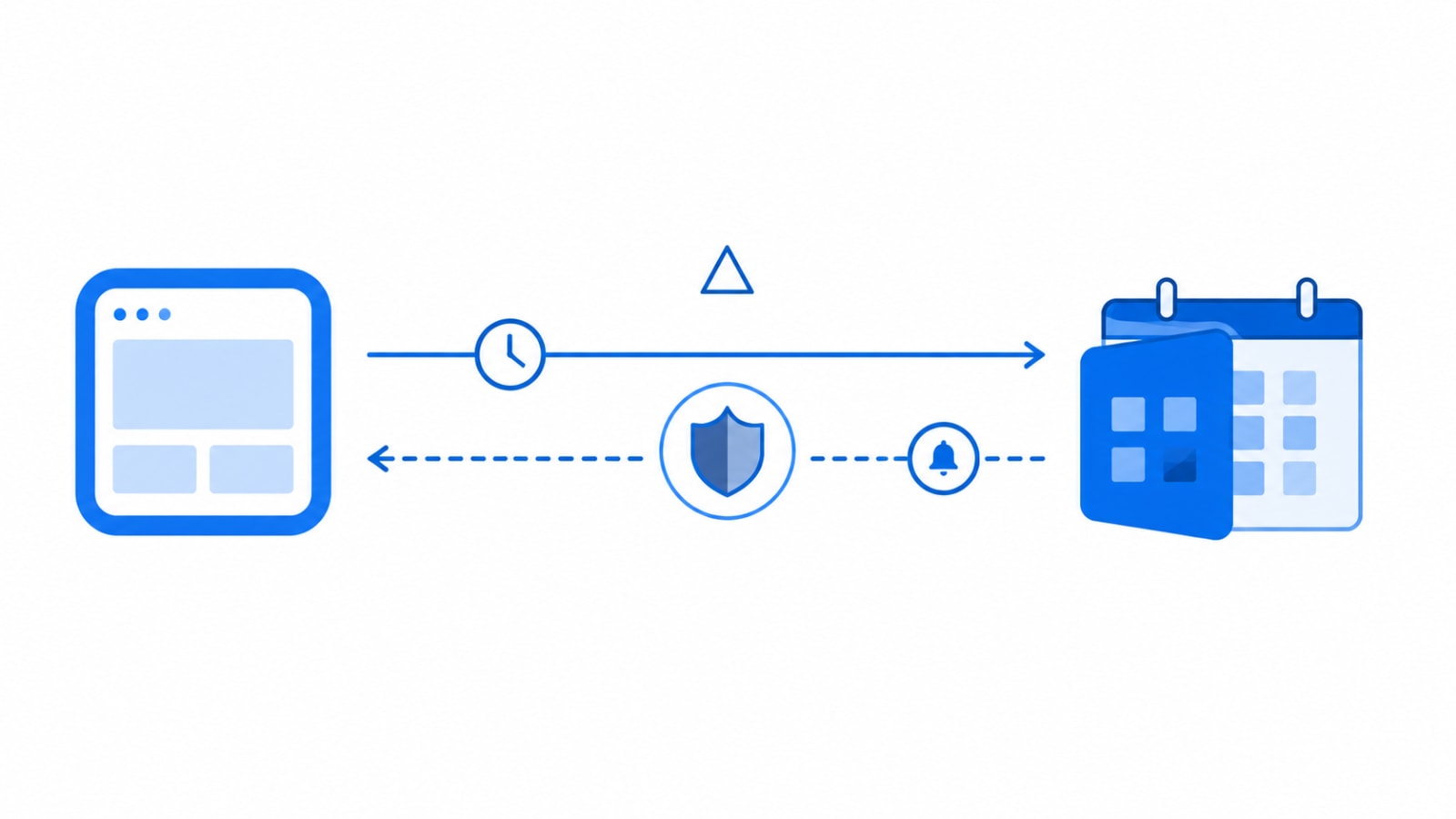
One-way sync gets you a working demo. Two-way sync — with delta queries, renewed subscriptions, and a real conflict policy — is what makes the feature trustworthy enough that users stop double-checking Outlook manually. If you're scoping calendar sync for your product and want help getting the architecture right before the edge cases show up in production, let's talk.